The window
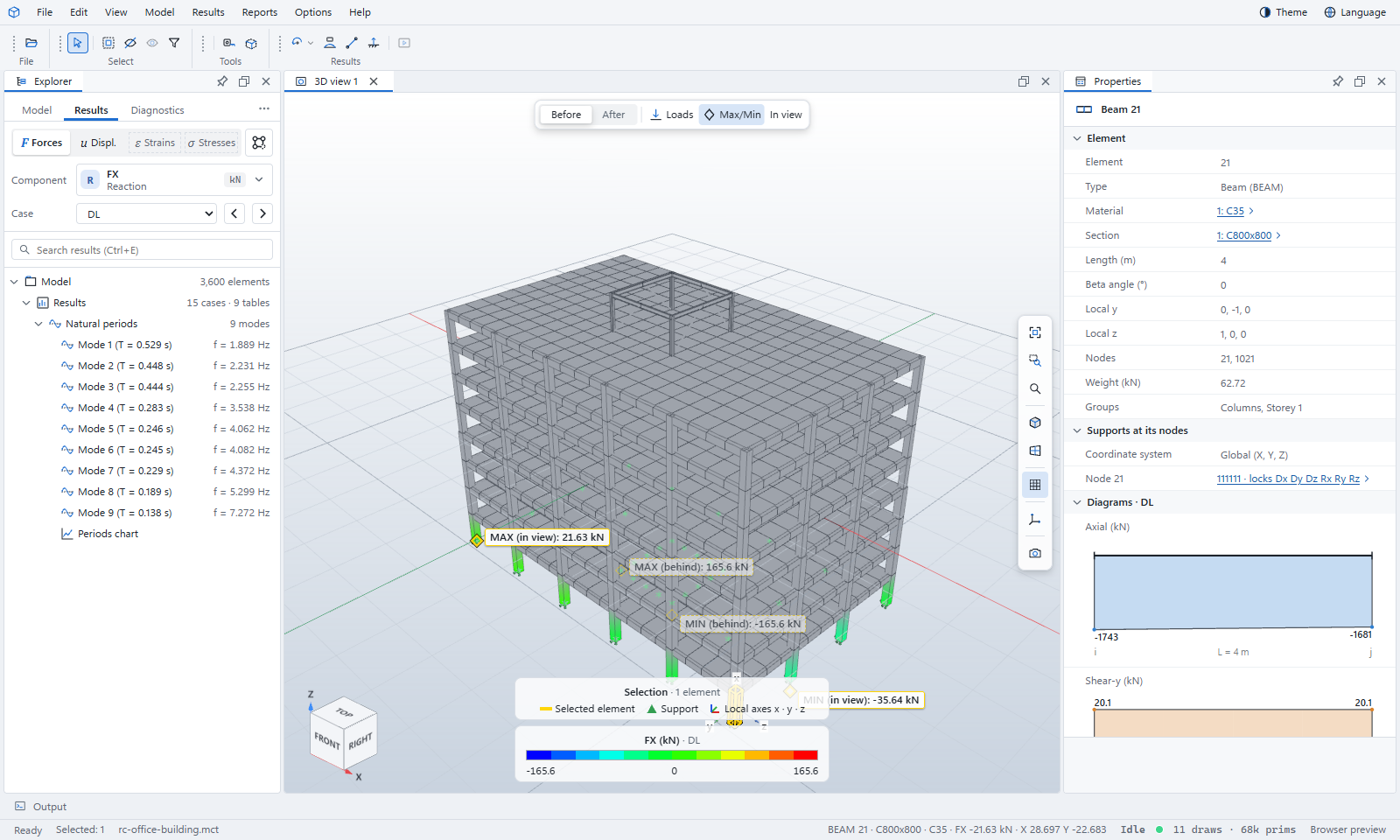
Menu bar and toolbars
The menu bar runs across the top: File, Edit, View, Model, Results, Reports, Options and Help. Long menus open as panels with titled groups and a search box: type to find a command. Theme and Language sit at the right end (in the desktop app, in the title bar).
Below it are the toolbars, each captioned with its name: File, Select and Tools are always there; the open file adds its own (for example Display and Results for a MIDAS model, or Data sets for a VTK file). Hover over any button for its name and shortcut.
Explorer
The Explorer, on the left, lists the open file. It has up to three tabs:
- Model — the model's tree, ordered the way its own program orders it. Numbers on the right count what each item holds.
- Results — the results header (family, component, case) above a tree of the result sets, modes, tables and charts in the file.
- Diagnostics — errors and warnings found while reading, and how the job ended.
The search box above the tree (Ctrl+E) filters it as you type. The ⋯ button at the right of the tabs holds Advanced, which shows the less common items and commands.
3D view
- The strip at the top: Before / After (undeformed or deformed), the deformation scale and Auto, Loads, Max/Min and In view.
- The camera rail down the right edge: fit all, zoom window, zoom to selection, the standard views, the grid, the coordinate systems and a screenshot.
- The view cube at the bottom left: click a face, edge or corner to look from there; drag it to orbit.
- The colour key at the bottom centre, whenever the model is coloured.
You can open more 3D views (Options › New 3D view) or split the view (Options › Split view) to compare cases side by side.
Properties
Properties, on the right, shows the selected item: its data grouped under headings, with links to related items (click a section name to see the section). For a member with results, it also shows its values and diagrams for the case shown.
Output and status bar
Output, at the bottom, keeps a log of what the Viewer did: files read, warnings, runs. The status bar shows the open file's name, how many items are selected, and what is under the cursor.
Panels can be moved, docked, floated, pinned and closed; see Options and layout.