One viewer for the models and results of many programs
Each kind of file opens with the tree, properties and results its own program would show, and every file shares the same 3D view, result controls, tables and tools.
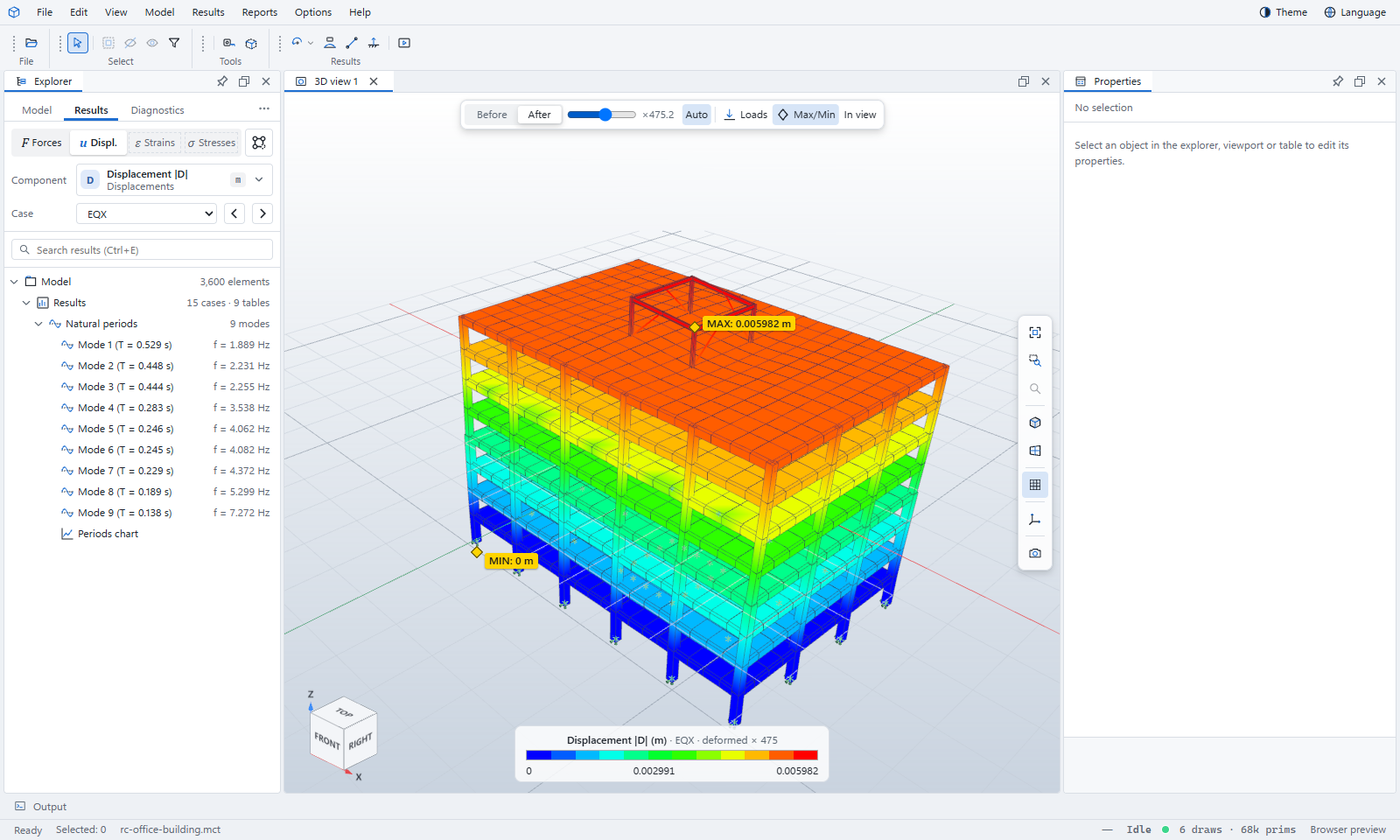
Building and bridge models with their result tables
Open MIDAS text files (.mct, .mgt), MIDAS project files (.mcb, .mgb, .mgbx) and ETABS text files (.e2k, .$et). The Model tab follows MIDAS's own Works tree: analysis settings, structures, properties, boundaries, masses, static loads, construction stages and groups.
- Results from MIDAS's exported tables (Excel .xlsx/.xls or text) and its own result files (Civil .nfxp, Gen .GAX1)
- Displacements, reactions, member forces, plate and solid stresses, modes and periods
- Beam force diagrams with values at both ends and at the peak
- Construction stages, moving-load, response spectrum, time history and buckling tables
- MIDAS design check results with MIDAS's own O.K. / N.G. verdicts
- Units switching, stories, groups and boundary tables
Decks, CAE databases and output databases
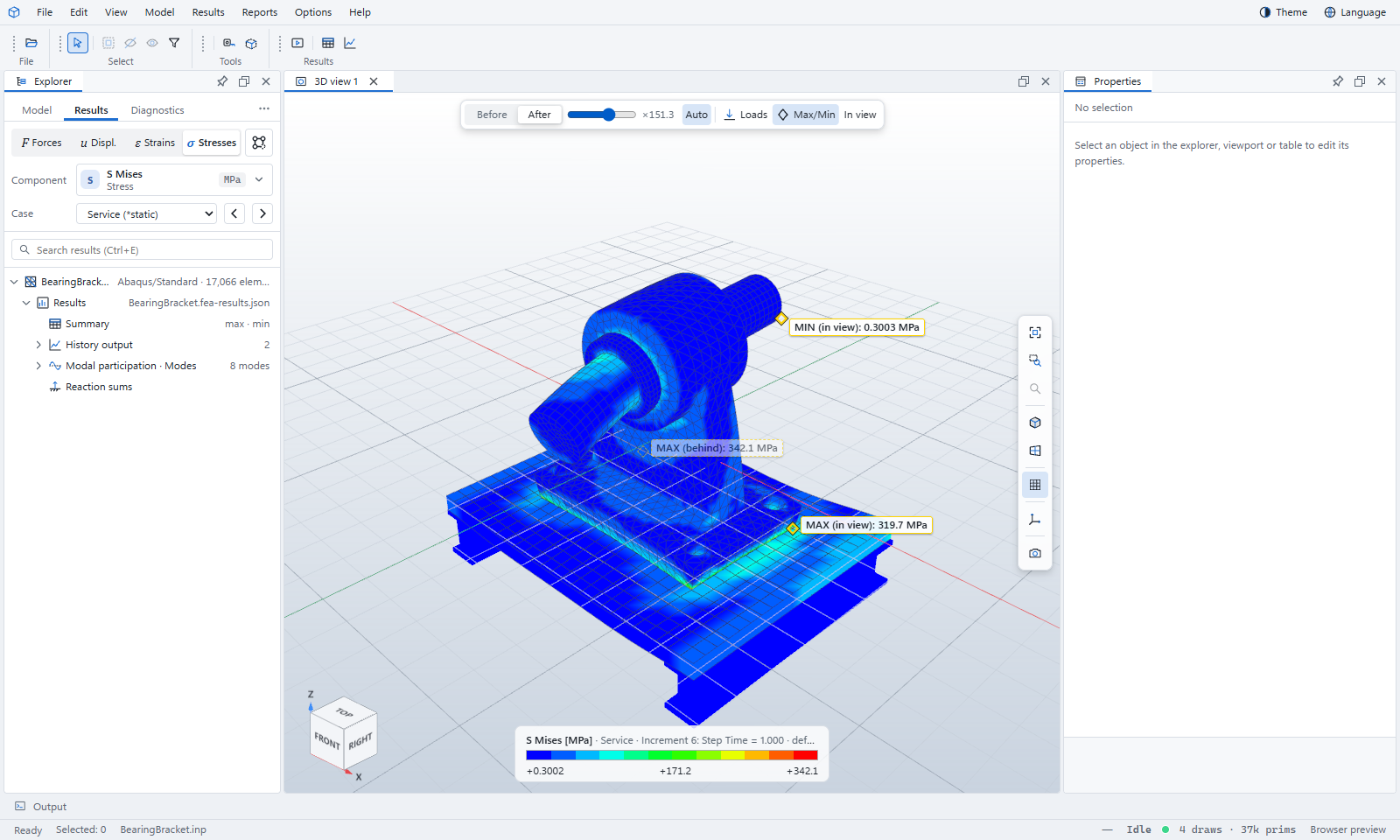
Open an input deck (.inp), a CAE model (.cae) or an output database (.odb) — no Abaqus licence needed to read any of them. The Explorer shows parts, the assembly, materials, sections, steps, boundary conditions, loads, interactions and constraints.
- Every field output: stresses, strains, displacements, contact, energies, with invariants and principal values
- Values at integration points, centroids or nodes; section points; coordinate systems; envelopes
- Frames and modes animated smoothly, with an automatic or chosen deformation scale
- Model check, mesh checks and units guessed from the deck (and asked when unsure)
- Job messages from .msg, .sta and .dat files, explained in plain language
- History output charts, reaction sums and modal participation
BIM models, element by element
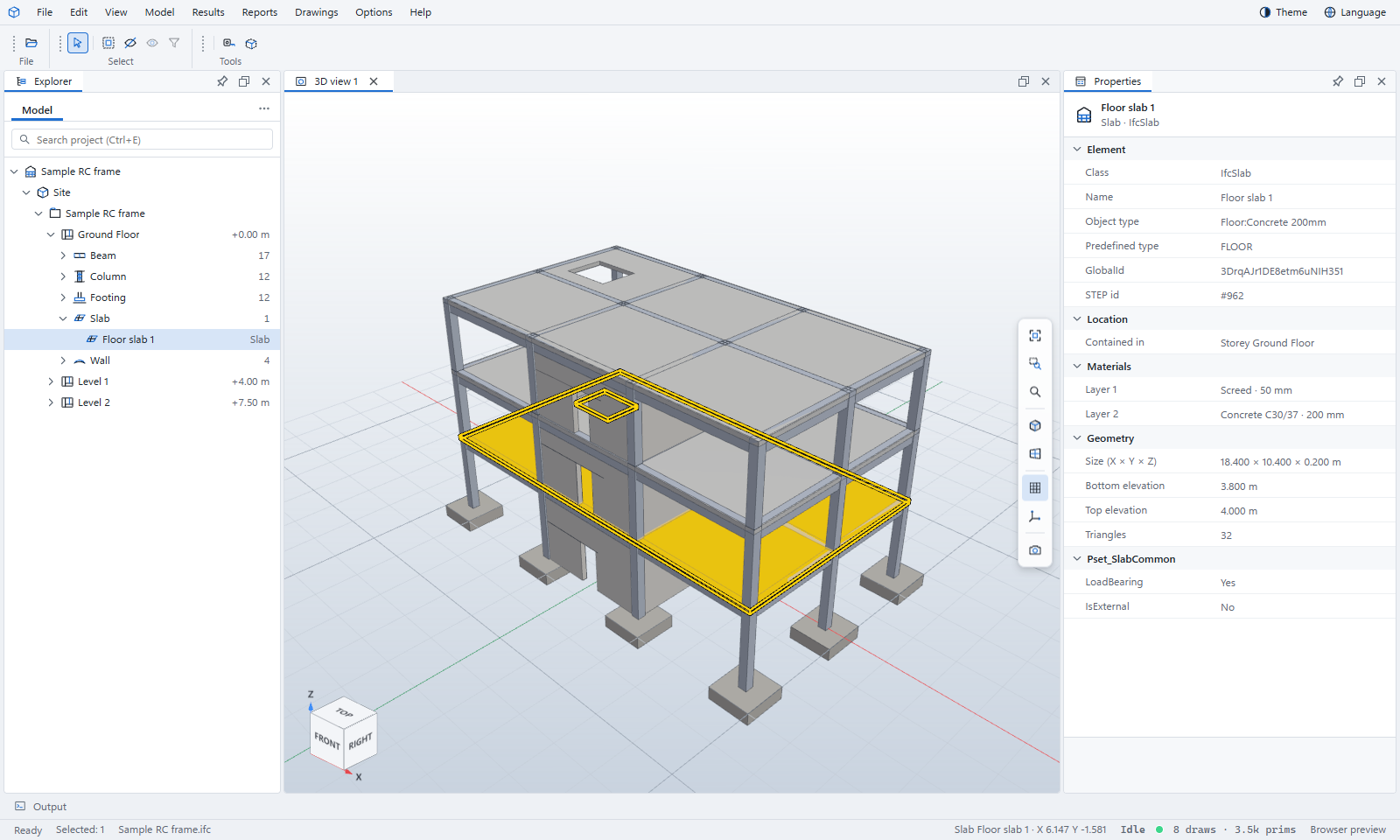
Open IFC files (.ifc, .ifczip) from any BIM program, and Revit models (.rvt) without Revit. The Explorer lists the site, buildings and storeys, and each storey's elements by class.
- Every element's class, type, materials and layers, quantities and property sets
- Colour by class, storey, material, type or any property
- Plan views: choose a level and look down on it, cut 1.2 m above the floor
- Reinforcement and steel shop drawings from IFC models
Pushover and time-history runs
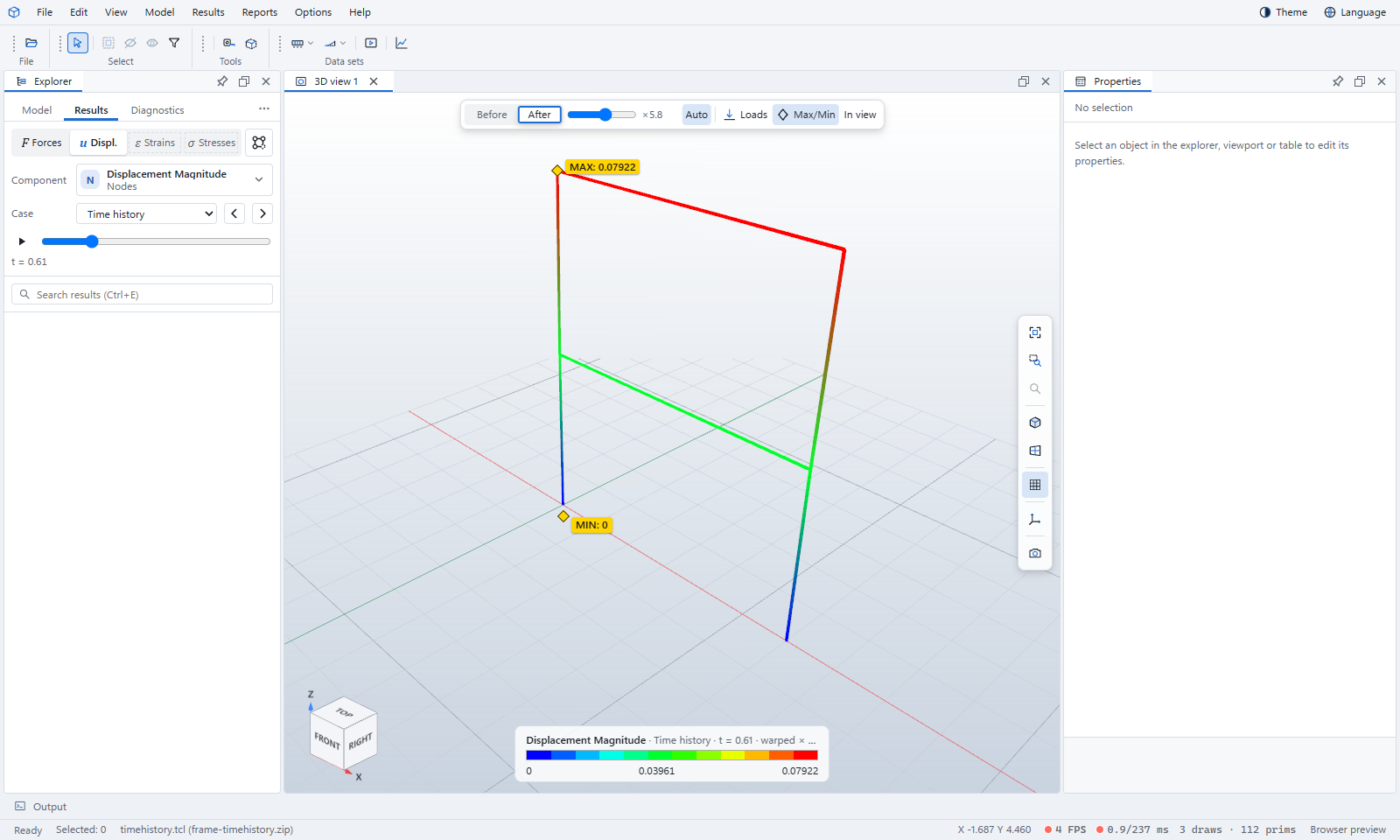
Open an OpenSees run as a .zip of its script and recorder output. The Viewer reads the model, its loads and local axes from the script, and the results from the recorders.
- Node displacements and member force diagrams (N, V, M) at every step
- Time histories played through time, with a step slider
- Modes and envelopes from the recorder files
- In the desktop app, run your own Tcl or OpenSeesPy script with the OpenSees on your computer and open its results
Wind turbine runs and floating bodies
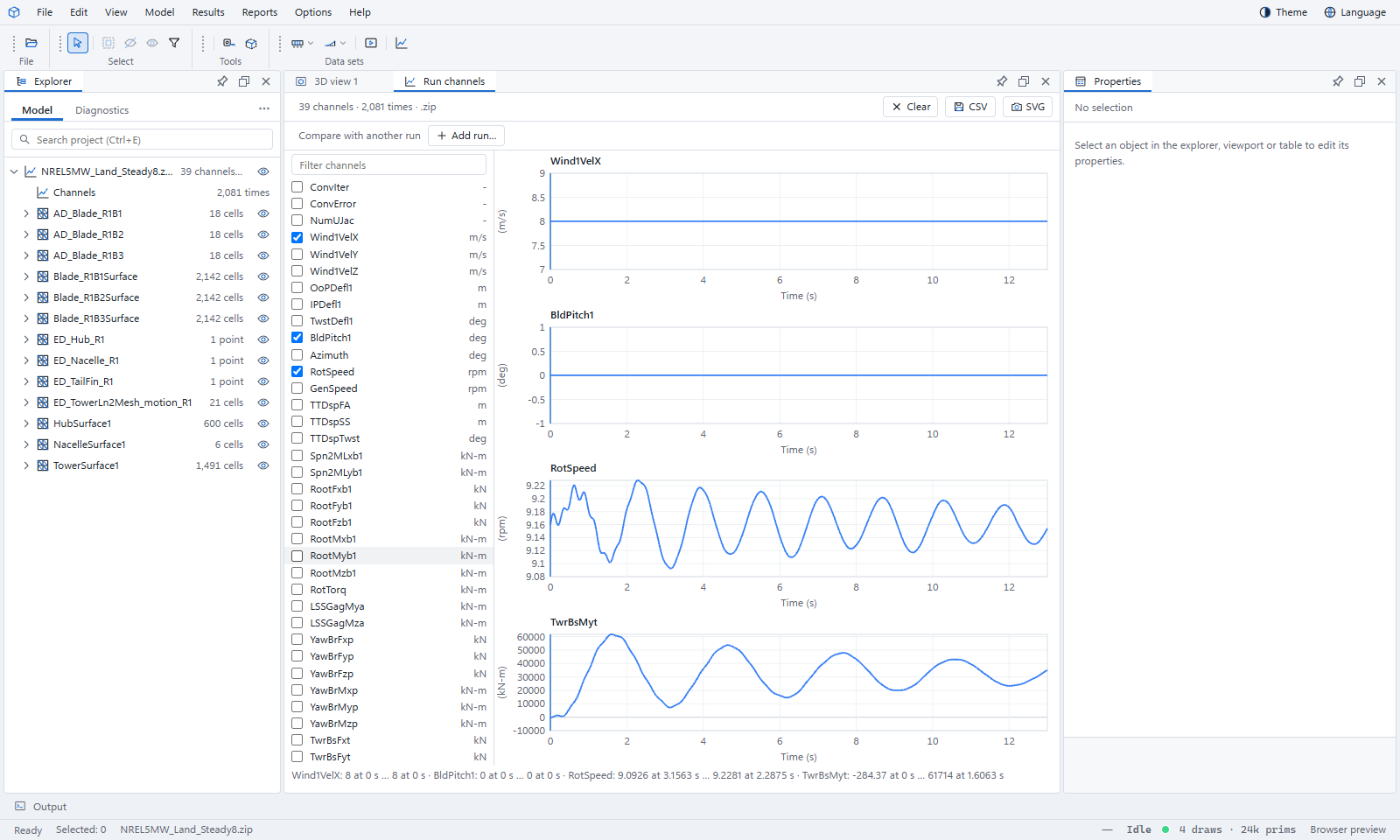
Open an OpenFAST run — its output channels (.outb or .out) and its VTK meshes — and see the turbine move with the channels plotted beside it. Open OpenFAST input decks (.fst) and NEMOH projects (Nemoh.cal) to browse and check them.
- Channels grouped by unit, filtered by name, compared with another run
- Blade, tower, hub and nacelle meshes coloured by the channel along them
- The desktop app can run OpenFAST and NEMOH installed on your computer
Results from any solver that writes VTK
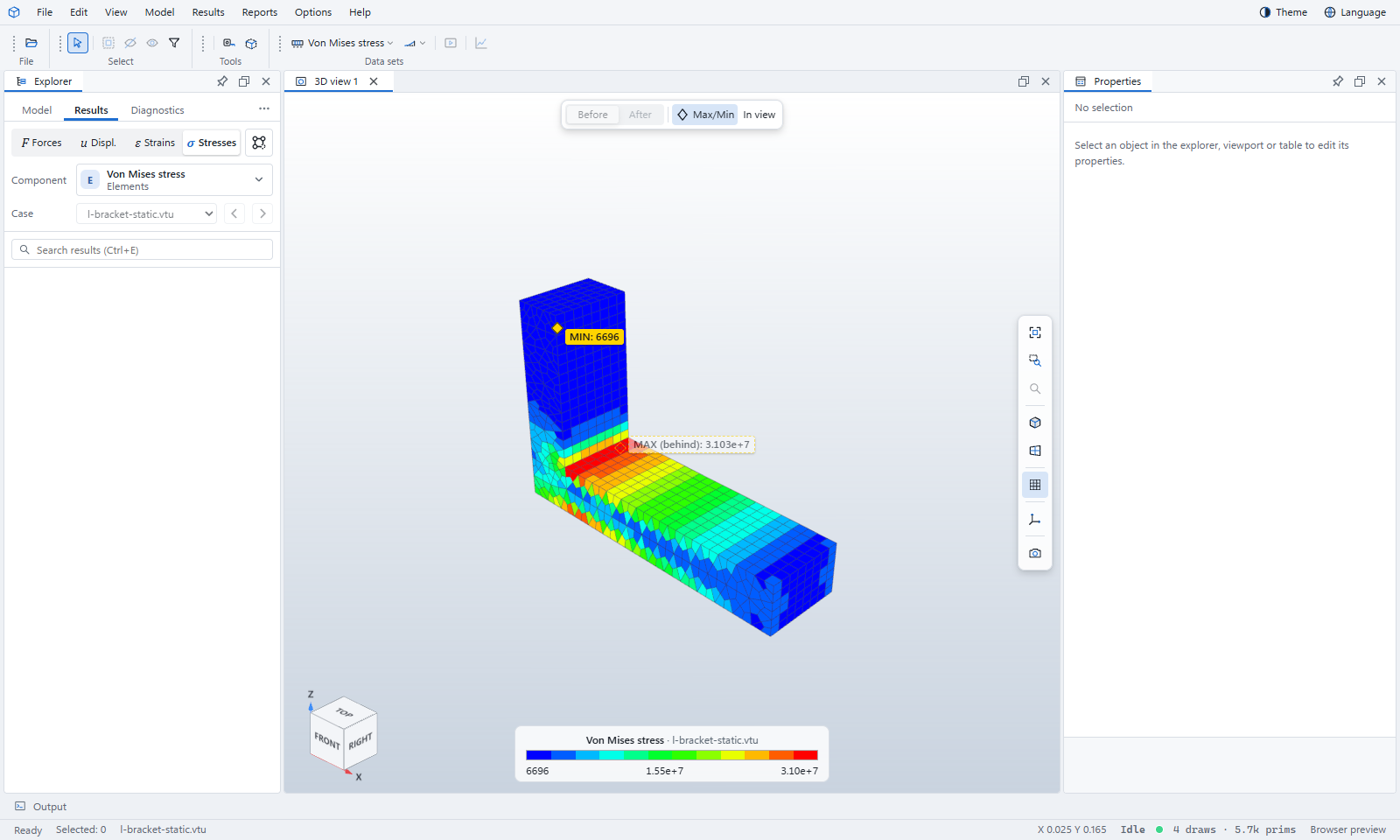
Many open-source solvers write VTK. Open .vtu, .vtp and legacy .vtk files, .pvd series of frames, and CalculiX .frd results.
- Every point and cell field, as a contour or a deformed shape (Warp by vector)
- Series of frames played as an animation
- Several data sets at once, each shown or hidden from the Explorer
Common tools
Whatever you open, the same controls work the same way.
Results in four families
Forces, displacements, strains and stresses. Pick a family, a component and a case, then step with ‹ › or play.
Before and after
Show the model undeformed or deformed, with an automatic scale or your own, and the loads drawn on it.
Max and min, even hidden
The extremes are marked. Values behind other members are marked “behind”; In view finds the extremes of what you can see.
Clipping box
Drag the six arrows to cut into the model. The cut faces are capped so solids look solid.
Tape measure
Measure between any points, edges and faces, with snapping. Leave guides behind if you need them.
Views and navigation
View cube, standard views, zoom window, walk-through, perspective or orthographic, and your own home view.
Isolate and display groups
Show only what you selected, hide what is in the way, or keep a named group of members on screen.
Colour by
Colour the model by section, material, storey, group, type or property, with a key.
Tables and charts
Summary and member tables linked to the 3D view; history, period and channel charts.
Screenshots
Save the 3D view as an image, legend included, from the camera button.
Light and dark, English and 한국어
Choose a theme and the language of the interface from the title bar.
Your layout
Dock, float and split panels and 3D views. Save layouts and switch between them.
What the Viewer does not do
FEA Viewer shows what the source program wrote. It does not re-analyse your model, combine load cases the program did not combine, or judge a design that the program did not check. When a value isn't in the file, the Viewer says so rather than working one out. To analyse and design a structure, see FEA Studio, our analysis and design program.
See it with your own files
Drag a file onto the Viewer, or start with one of the samples.